Sunday, September 30, 2012

List SSAS User Roles Using PowerShell

Here’s the PowerShell script that can be use to list users and their roles in SQL Server Analysis Service (SSAS) database using PowerShell and Analysis Management Object (AMO):


[Reflection.Assembly]::LoadWithPartialName("Microsoft.AnalysisServices")

$SSASServerName = "ServerName"
$SSASDB = "DatabaseName"

$SSASServer = New-Object Microsoft.AnalysisServices.Server
$SSASServer.Connect($SSASServerName)
$SSASDatabase = $SSASServer.Databases.Item($SSASDB)
$SSASDatabase.Roles | Select Name, Members

Notes (25th Apr 2013): Made a correction to one of the variable name on the code. On line 8, instead of using $SSASServer, it should use $SSASDB.

Tuesday, September 11, 2012

Contact Form

3133347219_4c16658dd5_m

As part of the process of redesigning this blog, I’ve decided to add a contact form page to this blog. Contact form would allow lovely readers, such as yourself, to communicate (or contact) me directly. It would certainly allow me to “listen” to your comments, critics and feedbacks.

Obviously I can share my e-mail address on this blog. However, that would potentially expose my e-mail address to spammers, which I prefer to avoid. Contact form would address this problem. There are several online applications that would allow you to easily create online forms and integrate those forms to your blog. After doing a little bit of research, I chose to use Wufoo (@Wufoo). Wufoo is part of SurveyMonkey, which is an established company that provide easy to use online survey. There are several factors that lead me to Wufoo:

  1. It’s free … well sort of. Wufoo has Gratis plan, which is free of charge. However, there are some limitations, such as we only get 100 entries/month and we can only build 3 online forms. At this point, I can live with those limitation. For more information on Wufoo’s plans, click here.
  2. Ease of use. It is very easy and intuitive to create the online form (in my case, the contact form). I think the GUI of their form builder tool is well-designed. I can drag and drop the fields that I want to have in the form. I can also easily define the field properties, such as whether or not the field is a required field, the maximum number of characters that can fit in that column, etc. imageimage
  3. Easy implementation to the blog. Once the form has been created, there is a theme designer in Wufoo that allows us to modify the form look and feel to match our blog theme (font, color, etc.).image                  Once the form has been created, Wufoo would generate the script(s) that we can use in our blog. I am using blogger as my blog engine. To implement the contact form, I would create a new page, and copy and paste the Javascript version of the Embed Form Code.image
  4. Report and notification options. With Wufoo, we can easily set up e-mail notification whenever someone submitted an entry to the form. We can even set up alert to our mobile phone whenever someone submitted an entry. In addition, the entries are also being recorded in their database. So we can also login to Wufoo and generate a report that would list all the entry.
  5. More than just a contact form. Currently I am just using Wufoo for contact form. However, I can certainly see more usage possibilities on this blog, such as online poll form, survey form, etc.

Overall I am pretty happy with Wufoo so far. The only issue that I might have is the form loading time might be a tad slower than I expected. For those who is looking to implement any kind of online form (either contact form, registration form, survey, etc.), I would recommend to give Wufoo a try.

Friday, August 24, 2012

Site New Look

I've been looking for a blogger template that have a wide content area for quite some time, since occasionally I would post some sample codes in my blog posts. A wider content area would make it easier to read sample codes. However, for some reason I could not find one that I like.

So I've decided to create a new template for this site. For the past two weekends, I've been developing this new blogger template. I must admit that I am not much of a designer.

For most part, I have kept the design pretty simple. As you might have noticed, there are not many images in the template. I also made the content area a little bit wider than the normal blogger templates. But not too wide. The site should still be good for people who are using 1024x768 screen resolution. A wider content area also allowed me to make the font on this site a little bit bigger. So that it is easier to read the content in this blog.

Well, hopefully you like the site new look. Please feel free to leave any feedback or suggestion in regards to the site new look. You can also utilize the new Contact form to get in touch with me.

Monday, May 14, 2012

SQL Saturday #142–Waltham, MA

SQL Saturday is a one-day, jam-packed, educational event organized by and for local SQL Server Professionals, with the help of corporate and personal sponsors. It is free of charge, although you will need to register to reserve your spot. SQL Saturday #142 is going to be held in Waltham, Massachusetts. Here’s the detail:

What: SQL Saturday #142
When: Saturday 19th May 2012 8:30 AM – 5:30 PM (Eastern Time)
Where: Microsoft Office, 201 Jones Rd., Waltham, MA 02451 (Map)

To register, please go to http://www.sqlsaturday.com/142/eventhome.aspx. Currently, there are about 30 sessions scheduled for SQL Saturday #142. For a complete schedule and description of the sessions, you can check it out at http://www.sqlsaturday.com/142/schedule.aspx.

Why You Should Attend?

If you are in the area, I would recommend you to attend this event. There are 3 main reasons on why you should attend this event:

  1. Educational – SQL Saturday is a great place to learn different aspects of SQL Servers. If you look at the list of sessions for this SQL Saturday, you will see a wide variety of topics related to SQL Server. You can learn anything from SQL in the cloud (SQL Azure) to the newly released SQL Server 2012. There are also sessions on SQL Server Integration Services, SQL Server Reporting Services and SQL Server Analysis Services. Each session is scheduled to run for about 1 – 1.5 hours. Obviously, you will most likely not be able to master the session topic within that short time period. However, it can help to get your feet wet on the subject.
  2. Networking – This event is a great way to meet fellow local SQL Server Professionals. We can always learn from each other experiences.
  3. Meet with Vendor(s) – There are going to be a few vendors that are coming to this SQL Saturday. This is a chance to see some of their product demo, ask questions about their product(s) and possibly see if any of their product(s) can help your organization.

Not in the Area?

SQL Saturday might be coming to a city near you. You should check SQL Saturday site for a list of upcoming SQL Saturday events in various location.

Saturday, May 5, 2012

SQL Server 2012: Merged Product Updates (Slipstream)

Yesterday I blogged on the Product Updates feature in SQL Server 2012, that blog entry can be found here. In that blog entry, I talked about firing the SQL Server 2012 setup along with the Product Updates parameters option from the command line. But what if we want to automatically run the setup with the Product Update feature every time we run the SQL Server 2012 setup? This article will show how to create a new SQL Server 2012 distribution media that will run the SQL Server 2012 setup and SQL Server 2012 Cumulative Update 1.

Here’re the steps:

  • Create a new folder. For this example, I create a new folder called SQL2K12 on C:\Setup
  • Copy the folders and files from the SQL Server 2012 media onto C:\Setup\SQL2K12 folder.
  • Create a new folder called Updates on C:\Setup\SQL2K12 folder.
  • Download the SQL Server 2012 Cumulative Updates 1 from Microsoft. You might want to download the 446573_intl_i386_zip.exe (SQLServer2012_RTM_CU1_kb2679368_11_0_2316_x86) and 446572_intl_x64_zip.exe (SQLServer2012_RTM_CU1_kb2679368_11_0_2316_x64 ).
  • Run both files to extract the update files. When it asks for the extract location, specify C:\Setup\SQL2K12\Updates as the location. Once you’ve done with this steps, you should have SQLServer2012-KB2679368-x86.exe and SQLServer2012-KB2679368-x64.exe on C:\Setup\SQL2K12\Updates folder.

image

  • Go to C:\Setup\SQL2K12\x64 folder. Locate and edit (open in notepad) the DefaultSetup.ini file. On this file, you can specify the parameters that you want to have when running the setup.exe. To enable the Product Updates feature and have it get the update from the Updates folder, you can put the following on the DefaultSetup.ini file (once the file has been updated, save and close it) :

;SQL Server 2012 Configuration File
[OPTIONS]

UpdateEnabled=TRUE
UpdateSource=.\Updates

Notes: With the above DefaultSetup.ini file, when you run the Setup.exe, it will present you with the SQL Server Installation Center screen.

image

Now, say that you want to bypass the SQL Server Installation Center screen and go right ahead to the installation process, you can add the parameter Action=Install. So your DefaultSetup.ini file would look like the following:

;SQL Server 2012 Configuration File
[OPTIONS]

Action=Install

UpdateEnabled=TRUE
UpdateSource=.\Updates

  • Do the same thing to the DefaultSetup.ini file on C:\Setup\SQL2K12\x86.

Testing

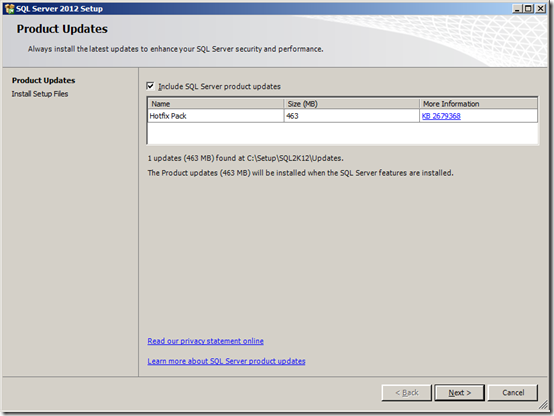
You are done, so when you run the Setup.exe and do the SQL Server 2012 install, after the Setup Support Rules screen, you should see:
image

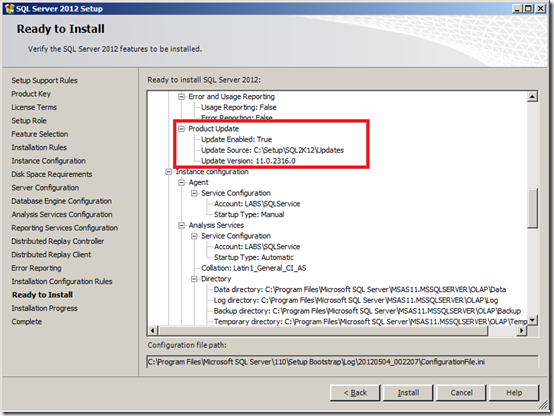
Then again on the Ready to Install page, you should see the following:
image

After the installation process, when you check for the installed SQL Server 2012 version, you should see version 11.0.2316.0.

[image%255B3%255D.png]