In SQL Server, xp_cmdshell is an extended stored procedure that is stored in the master database that would allow us to execute Windows command shell. By default, the ability to execute xp_cmdshell is disabled. We could enable the ability to run xp_cmdshell by executing the following query against the SQL Server instance:
Friday, January 4, 2019
Wednesday, February 21, 2018
Windows 10 – Mobile Hotspot
A few weeks ago, I was doing a demo on a couple of Alexa skills that I've developed using Amazon Echo Dot. However, the place where I have to do the demo use enterprise class Wi-Fi (it is where after connecting to the Wi-Fi network, we need to authenticate using web browser). Unfortunately, at the moment, as far as I know, Amazon Echo Dot doesn't support enterprise class Wi-Fi. To make matter worse, my cell phone signal was very weak in the meeting room, so I was unable to use my cell phone as hotspot.
Wednesday, July 22, 2015
Remove Log Shipping When Secondary Server Not Available
The other day, I came accross a scenario where I need to remove log shipping from a database on the primary server. However, we have already shutdown/decommissioned the secondary server. If we try to disable the log shipping from the database properties window, we would most like get the following:
Monday, July 20, 2015
Reflection on Steve Stedman's Database Corruption Challenge
Over the past few months, Steve Stedman (blog | twitter) has been conducting database corruption challenge. It is a challenge where Steve would post corrupt SQL Server databases and the participants would try to fix the corruption to the best of their ability. The participants would need to avoid any data loss when trying to fix the database corruption.
Friday, May 15, 2015
Change Data Capture (CDC) and Simple Recovery Mode
One of the misconceptions that some people have about change data capture (CDC) in SQL Server is that it needs the database to be set up with full recovery mode. If we look at the following TechNet article, it mentioned:
It should be noted that change data capture works with all recovery models. But when change data capture is enabled, operations that would normally be minimally logged in simple or bulk-logged recovery models are fully logged to enable change data capture to capture all changes.
Tuesday, May 5, 2015
SQL Script: Database Auto Grow and/or Auto Shrink Report
Below is a SQL script that can be used to list recent auto grow and/or auto shrink events that happened on your SQL Server. It queries the SQL Server default trace. By default, default trace is enabled (you can check this by running: sp_configure 'default trace enabled').
Wednesday, April 29, 2015
PowerShell Script: List SQL Server Analysis Service Role Permission By Database and Cube
Wednesday, April 22, 2015
PowerShell Script: Adding Database into Always On Group
Every once in a while, I have a new database that I need to put into an existing Always On group. So I have decided to create a PowerShell script that would do just that. The script can be found here.
Tuesday, March 24, 2015
File Share Witness
If you have cluster environment and using the file share witness, you can use the following command line (using cluster.exe) to get the location of your file share witness:
cluster.exe res "FileShare Witness" /priv
Or if you prefer to use PowerShell, you can use:
Get-ClusterResource "File Share Witness" | Get-ClusterParameter | fl
Monday, February 10, 2014
High Virtual Log Files (VLF) Count
Virtual log files are basically segments of the database log file. Every time the transaction log grow in size, the number of virtual log files would also grow. If you have a database with transaction log that keep growing in small increment each time, you can end up with a lot of virtual log files, and that can be a bad thing.
In SQL Server 2012, if you have a database with more than 10,000 virtual log file, you will get a warning message on the SQL Server logs. To demonstrate this:
First I would create a database called VLFTest. I set the log file for the database to have an initial size of 512 KB (for this size 2 VLF will be created).
USE [master];
IF DB_ID('VLFTest') IS NOT NULL
BEGIN
DROP DATABASE VLFTest;
END;
GO
CREATE DATABASE VLFTest
ON (
NAME = 'VLFTest_Data',
FILENAME = 'C:\Program Files\Microsoft SQL Server\MSSQL11.MSSQLSERVER\MSSQL\DATA\VLFTest_Data.mdf')
LOG ON (
NAME = 'VLFTest_Log',
FILENAME = 'C:\Program Files\Microsoft SQL Server\MSSQL11.MSSQLSERVER\MSSQL\DATA\VLFTest_Log.ldf',
SIZE = 512 KB,
MAXSIZE = 10240 MB,
FILEGROWTH = 512 KB);
GO
Once the database is created, I can check the number of VLF created by running the following query:
DBCC LOGINFO ('VLFTest');The query should return 2 rows, which would indicate that there are two VLFs created.
The next thing I would do is to grow the transaction log size by 512 KB increment for 5,000 times. Since each time we increment the transaction log by 512 KB, 2 new VLFs would be created. Thus, doing it for 5,000 times would cause it to generate 10,000 new VLFs. So at the end I would end up with 10,002 VLFs. I can do this by using the following script:
DECLARE @CurrentSize AS INT,
@LogFileQuery AS NVARCHAR(1000);
--- Get current log file size.
PRINT 'Current log file size is ' + CAST(@CurrentSize AS VARCHAR(1000)) + ' KB';
SELECT @CurrentSize = size*8 FROM sys.master_files WHERE database_id = DB_ID('VLFTest') AND name = 'VLFTest_Log'
--- Try to grow the transaction log by 512 KB. This should result in two additional VLF.
PRINT 'Growing the transaction log to ' + CAST((@CurrentSize + 1) AS VARCHAR(1000)) + ' KB';
SET @LogFileQuery = 'ALTER DATABASE VLFTest MODIFY FILE (NAME = VLFTest_Log, SIZE = ' + CAST((@CurrentSize + 512) AS VARCHAR(1000)) + ' KB);';
EXEC (@LogFileQuery);
GO 5000
Now if I run the following query:
DBCC LOGINFO('VLFTest');I would get back 10,002 rows back, which means that I have 10,002 VLFs on VLFTest database’s transaction log.
Now, the warning in SQL Server log unfortunately will not be trigger when the VLF count goes beyond 10,000. I found out that it will be trigger under the following conditions:
- When the SQL Server is restarted
- When the VLF database is set online (after it is set offline)
- When we restore the database
So for a quick test, I try to set the database offline and then back online by using the following query:
USE master;
GO
ALTER DATABASE VLFTest SET OFFLINE;
GO
ALTER DATABASE VLFTest SET ONLINE;
GO
After VLFTest database is back online, when I go to SQL Server log, I would get the following message:
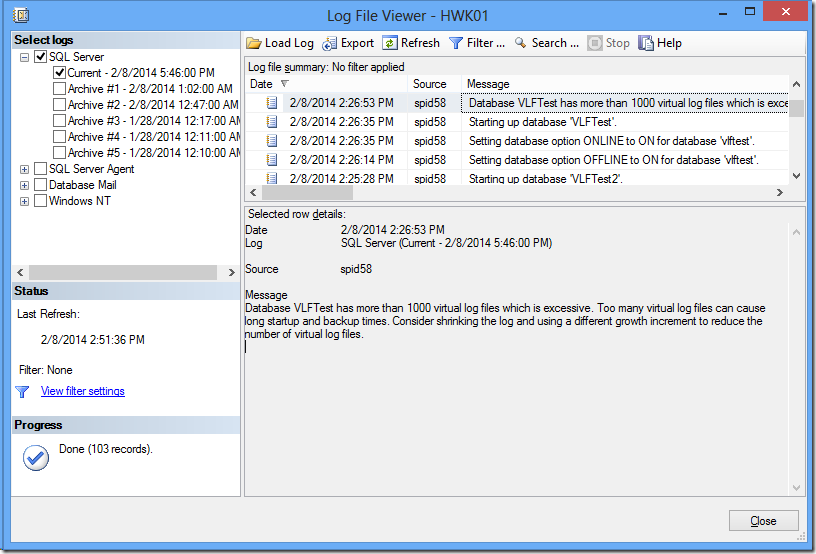
Database VLFTest has more than 1000 virtual log files which is excessive. Too many virtual log files can cause long startup and backup times. Consider shrinking the log and using a different growth increment to reduce the number of virtual log files.
Why Having Too Much of VLFs Count Can Be Bad Thing?
Having an excessive VLFs count can be a bad thing to your database. For one, when I tried to make the database back online after turning it offline, it took longer than expected. When I run the following query:
USE master;
ALTER DATABASE VLFTest SET OFFLINE;
GO
SET STATISTICS TIME ON;
ALTER DATABASE VLFTest SET ONLINE;
GO
After running it 5 times, on average it took about 23 seconds for the database to be online. Now compare this with the following:
USE master;
GO
IF DB_ID('VLFTest2') IS NOT NULL
BEGIN
DROP DATABASE VLFTest2;
END;
GO
CREATE DATABASE VLFTest2
ON (
NAME = 'VLFTest2_Data',
FILENAME = 'C:\Program Files\Microsoft SQL Server\MSSQL11.MSSQLSERVER\MSSQL\DATA\VLFTest2_Data.mdf')
LOG ON (
NAME = 'VLFTest2_Log',
FILENAME = 'C:\Program Files\Microsoft SQL Server\MSSQL11.MSSQLSERVER\MSSQL\DATA\VLFTest2_Log.ldf',
SIZE = 2560512 KB,
MAXSIZE = 10240 MB,
FILEGROWTH = 1024 KB);
GO
It is basically the same database, but instead of growing the transaction log file from 512 KB to 2,560,512 KB by 512 KB increment (and in the process created 10,002 VLFs), I immediately create the transaction log with size 2,560,512 KB. By doing this, I only have 16 VLFs. Now when I try to run the following query:
USE master;
ALTER DATABASE VLFTest2 SET OFFLINE;
GO
SET STATISTICS TIME ON;
ALTER DATABASE VLFTest2 SET ONLINE;
GO
After running it 5 times, on average it took about 0.2 seconds to bring VLFTest2 database online. That’s quite a huge difference, 23 seconds vs. 0.2 seconds (about 2,200% difference).
I also noticed big difference in the time that it took to restore VLFTest1 database (with 10,002 VLFs) compared to the VLFTest2 database (with 16 VLFs). It took about 1 minutes and 35 seconds to restore VLFTest1 database, but it only took about 6 seconds to restore VLFTest2.
In addition to the above, having an excessive number of VLFs in your database can also have an impact on the database transaction. A while ago, Linchi Shea wrote a blog post regarding this. It can be found here.
Take Away
Having a high count of VLFs can hurt your database. To avoid it, we need to carefully plan our database size, especially in this case, the transaction log size. We also need to make sure that the transaction file growth size is not too small. This is to ensure that we don’t end up with many auto growth on the transaction log file, which cause the VLFs to grow.
Further Reading
You might also want to read Kimberly Tripp’s blog post regarding VLF. It can be found here.
Thursday, February 6, 2014
Utilizing smtp4dev with SQL Server Database Mail for Testing
SQL Server has database mail, a solution which would allow us to send e-mail from our database server. It allows us to send either e-mail in html or text format to users. It’s great because we can use it to send query results to users (or ourselves). We can also configure SQL Server Agent to use database mail to send alerts to operator.
Database mail utilizes SMTP server to send the e-mails. In some cases, we might not have a readily available SMTP server in our environment (like in my home lab environment) or we might be block from using the SMTP server from our development environment for security reason. In those situations, I’ve been using smtp4dev. It is a neat little utility that would allow you to have a dummy SMTP server on your local computer. It is lightweight and also no installation is needed. When we run the utility, it would sit on the system tray and listen to port 25 (default SMTP port). It will receive the e-mail that get send to its way, without sending the e-mail to its final destination (the e-mail recipients). It is pretty handy when we need to run some tests.
Setting up database mail to work with smtp4dev is pretty simple.
- Download smtp4dev from http://smtp4dev.codeplex.com.
- Extract the file and save it on your system (assuming that it is your development system and it has the SQL Server).
- Run smtp4dev. Notes: If you have Windows Firewall turned on, you might get a “Windows Security Alert” that ask you if you want to allow smtp4dev to communicate with either the private network, public network or both. Since normally I run smtp4dev on my development system with also has SQL Server that I want to have database mail turn on, I would just hit the cancel button.
- If database mail in SQL Server has not been enable, we can enable it by using the following SQL script:
exec sp_configure 'show advanced', 1;
go
reconfigure;
go
exec sp_configure 'Database Mail XPs', 1;
go
reconfigure;
go
- We then need to set up database mail profile, account and then associate the profile with the account in SQL Server. To do that, we can use the following script (based on the “Database Mail Simple Configuration Template”):
DECLARE @profile_name sysname,
@account_name sysname,
@SMTP_servername sysname,
@email_address NVARCHAR(128),
@display_name NVARCHAR(128),
@error_display NVARCHAR(500);
-- Profile name. Replace with the name for your profile
SET @profile_name = 'SMTP4Dev';
-- Account information. Replace with the information for your account.
SET @account_name = 'SMTP4Dev Account';
SET @SMTP_servername = 'localhost'; --- Since the smtp4dev is on local system.
SET @email_address = 'john.doe@email.com';
SET @display_name = 'John Doe';
-- Verify the specified account and profile do not already exist.
IF EXISTS (SELECT * FROM msdb.dbo.sysmail_profile WHERE name = @profile_name)
BEGIN
SET @error_display = 'The specified Database Mail profile (' + @profile_name + ') already exists.';
RAISERROR(@error_display, 16, 1);
GOTO done;
END;
IF EXISTS (SELECT * FROM msdb.dbo.sysmail_account WHERE name = @account_name )
BEGIN
SET @error_display = 'The specified Database Mail account (' + @account_name + ') already exists.';
RAISERROR(@error_display, 16, 1) ;
GOTO done;
END;
-- Start a transaction before adding the account and the profile
BEGIN TRANSACTION ;
DECLARE @rv INT;
-- Add the account
EXECUTE @rv=msdb.dbo.sysmail_add_account_sp
@account_name = @account_name,
@email_address = @email_address,
@display_name = @display_name,
@mailserver_name = @SMTP_servername;
IF @rv<>0
BEGIN
SET @error_display = 'Failed to create the specified Database Mail account (' + @account_name + ').';
RAISERROR(@error_display, 16, 1) ;
GOTO done;
END
-- Add the profile
EXECUTE @rv=msdb.dbo.sysmail_add_profile_sp
@profile_name = @profile_name ;
IF @rv<>0
BEGIN
SET @error_display = 'Failed to create the specified Database Mail profile (' + @profile_name + ').';
RAISERROR(@error_display, 16, 1);
ROLLBACK TRANSACTION;
GOTO done;
END;
-- Associate the account with the profile.
EXECUTE @rv=msdb.dbo.sysmail_add_profileaccount_sp
@profile_name = @profile_name,
@account_name = @account_name,
@sequence_number = 1 ;
IF @rv<>0
BEGIN
SET @error_display = 'Failed to associate the speficied profile with the specified account (' + @account_name + ').';
RAISERROR(@error_display, 16, 1) ;
ROLLBACK TRANSACTION;
GOTO done;
END;
COMMIT TRANSACTION;
done:
GO
- Now the moment of truth, we can test to see if it works by trying to send an e-mail using sp_send_dbmail
exec msdb..sp_send_dbmail @profile_name = 'SMTP4Dev',
@recipients = 'jane.doe@email.com',
@subject = 'Test E-mail',
@body = 'This is a test email.';
If everything works as plan hopefully on your tray notification, you would see the following message:
And if you open smtp4dev, you should see the following:
To view the e-mail, you can click on the “View” or “Inspect” button.
Some caveats that I’ve noticed:
- I have Microsoft Office 2013 installed on my system, which includes Outlook 2013. For some reason, when I click the “View” button, I would get an error message “The attempted operation failed. An object could not be found.” and it just would not open the e-mail (if I try to open it using Outlook 2013). It is ok if I use Windows Live Mail 2012. I would normally use the “Inspect” button instead.
- If you exit out smtp4dev, the e-mails that you have on the Messages tab will get deleted.
Cleaning Up
If you want to remove the database mail from your SQL Server, first you want to remove the profile association with account, the profile and the account. You can do that by using the following script:
DECLARE @profile_name sysname,
@account_name sysname,
@error_display nvarchar(500);
-- Profile name. Replace with the name for your profile
SET @profile_name = 'SMTP4Dev';
-- Account information. Replace with the information for your account.
SET @account_name = 'SMTP4Dev Account';
IF NOT EXISTS (SELECT * FROM msdb.dbo.sysmail_profile WHERE name = @profile_name)
BEGIN
SET @error_display = 'The specified Database Mail profile (' + @profile_name + ') does not exists.';
RAISERROR(@error_display, 16, 1);
GOTO done;
END
IF NOT EXISTS (SELECT * FROM msdb.dbo.sysmail_account WHERE name = @account_name)
BEGIN
SET @error_display = 'The specified Database Mail account (' + @account_name + ') does not exists.';
RAISERROR(@error_display, 16, 1);
GOTO done;
END
-- Start a transaction before deleting the profile account, profile and account.
BEGIN TRANSACTION ;
DECLARE @rv INT;
EXEC @rv=msdb.dbo.sysmail_delete_profileaccount_sp
@profile_name = @profile_name,
@account_name = @account_name;
IF @rv<>0
BEGIN
SET @error_display = 'Failed to delete the profile with the specified account (' + @account_name + ').';
RAISERROR(@error_display, 16, 1) ;
ROLLBACK TRANSACTION;
GOTO done;
END;
EXEC @rv=msdb.dbo.sysmail_delete_profile_sp
@profile_name = @profile_name;
IF @rv<>0
BEGIN
SET @error_display = 'Failed to delete the database mail profile (' + @profile_name + ').';
RAISERROR(@error_display, 16, 1) ;
ROLLBACK TRANSACTION;
GOTO done;
END;
EXEC @rv=msdb.dbo.sysmail_delete_account_sp
@account_name = @account_name;
IF @rv<>0
BEGIN
SET @error_display = 'Failed to delete the database mail account (' + @account_name + ').';
RAISERROR(@error_display, 16, 1) ;
ROLLBACK TRANSACTION;
GOTO done;
END;
COMMIT TRANSACTION;
done:
GO
Then after that, you can disabled the database mail by using the following script:
exec sp_configure 'Database Mail XPs', 0;
go
reconfigure;
go
exec sp_configure 'show advanced', 0
go
reconfigure;
go
Sunday, June 9, 2013
List SSAS User Roles Using PowerShell (Part 2)
A while ago, I have a blog post in regards to using PowerShell to list user roles and also their members. The blog post can be found here. I’ve gotten a few questions about expanding the PowerShell script to:
- List user roles and their members for all databases within a particular SQL Server Analysis Services (SSAS) server.
- Output the result into one table
Here’s a PowerShell script that can be use to accomplish those goals
[Reflection.Assembly]::LoadWithPartialName("Microsoft.AnalysisServices")
# SSAS server name variable
$SSASServerName = "ServerName"
# Try to connect to the SSAS server
$SSASServer = New-Object Microsoft.AnalysisServices.Server
$SSASServer.Connect($SSASServerName)
# Object to store the result
$Result = @()
# Get the SSAS databases and loop thru each of them
foreach ($DB in $SSASServer.Databases)
{
# Get the SSAS database
$SSASDatabase = $SSASServer.Databases.Item($DB.name)
# Get the roles available within the SSAS database and loop thru each of them
foreach ($Role in $SSASDatabase.Roles)
{
# Get the members within the role and loop thru each one of them
foreach ($UserName in $Role.Members)
{
# Create a new object that would store the database name, role name and member user name
$ItemResult = New-Object System.Object
$ItemResult | Add-Member -type NoteProperty -name DatabaseName -value $DB.Name
$ItemResult | Add-Member -type NoteProperty -name RoleName -value $Role.Name
$ItemResult | Add-Member -type NoteProperty -name UserName -value $UserName.Name
# Put the item result and append it to the result object
$Result +=$ItemResult
}
}
}
$Result | Select DatabaseName, RoleName, UserName | format-table -auto -wrap | Out-String
Thursday, June 6, 2013
List SQL Server Analysis Services Database Properties Using PowerShell
If you have SQL Server Analysis Services (SSAS) and want to list the SSAS databases using PowerShell, here’s a PowerShell script that can do that:
[Reflection.Assembly]::LoadWithPartialName("Microsoft.AnalysisServices")
# Variable for your SSAS server name
$SSASServerName = "ServerName"
# Connect to the SSAS server
$SSASServer = New-Object Microsoft.AnalysisServices.Server
$SSASServer.Connect($SSASServerName)
# Try to list the SSAS database Name
$SSASServer.Databases | Select NameIt turns out that you can do much more than listing your SSAS database name with this. You can get the SSAS database collation, compatibility level, created date, last processed, etc. To get the full list of properties that are available to you, try to run the following PowerShell script:
[Reflection.Assembly]::LoadWithPartialName("Microsoft.AnalysisServices")
# Variable for your SSAS server name
$SSASServerName = "ServerName"
# Connect to the SSAS server
$SSASServer = New-Object Microsoft.AnalysisServices.Server
$SSASServer.Connect($SSASServerName)
# Try to list the SSAS database properties that are available to you
$SSASServer.Databases | Get-Member -MemberType property | FT -wrap | Out-StringSo now, if I want to get a list of SSAS database name, collation, compatibility level, created data and last processed date, I can run the following PowerShell script:
[Reflection.Assembly]::LoadWithPartialName("Microsoft.AnalysisServices")
# Variable for your SSAS server name
$SSASServerName = "ServerName"
# Connect to the SSAS server
$SSASServer = New-Object Microsoft.AnalysisServices.Server
$SSASServer.Connect($SSASServerName)
# Try to list the SSAS Database Name, Collation, Compatibility Level, Created Time, Estimated Size, Last Processed Date
$SSASServer.Databases | Select Name, Collation, CompatibilityLevel, CreatedTimeStamp, EstimatedSize, LastProcessed | FT -wrap | Out-StringRelated Blog Post:
Friday, May 24, 2013
Ubuntu + VirtualBox 4.2.12 Guest Additions = Low-Graphic Mode Error
I am using VirtualBox to run several test virtual machines. For most part, it has been pretty good. It’s lightweight and relatively easy and simple to use. Recently, I’ve upgraded VirtualBox to version 4.2.12. The upgrade process itself went well.
Then I started to update the guest additions on each of the virtual machines. Everything seems to be good… until it’s time to update the guest additions on Ubuntu virtual machine (I have Ubuntu 12.04 LTS). When I installed the guest additions, it seems to went well, it uninstall the previous version and install the guest additions for version 4.2.12. But then after I reboot that virtual machine, I got the following error message/ warning:
The system is running in low-grahics mode
Your screen, graphic card, and input device settings could not be detected correctly. You will need to configure these yourself.
I could not even get into the logon screen. Interesting …
Researching around the internet, it looks like there is a problem with Ubuntu and VirtualBox 4.2.12 guest additions. So I decided to try to revert back the guest addition to VirtualBox 4.2.10 guest additions. I was able to get the ISO for VirtualBox 4.2.10 guest additions from here.
Then I do the following:
- Start the Ubuntu virtual machine
- When I get “The system is running in low-graphics mode” error/warning, I press the CRTL-ALT-F1 to enter the tty1
- In VirtualBox menu for that Ubuntu system, I mount the VirtualBox 4.2.10 guest additions ISO that I have downloaded earlier. I just went to Devices – CD/DVD Devices – Choose a virtual CD/DVD disk file. Then select the ISO file.
- After login in tty1, I ran the command below. It would mount the cd and then run the VirtualBox 4.2.10 guest additions for Linux. It would uninstall the VirtualBox 4.2.12 guest additions and install the VirtualBox 4.2.10 guest additions.
sudo mount /dev/cdrom /cdrom
cd cdrom
sudo sh VBoxLinuxAdditions.run - Then once it’s done, I reboot the system by running the following command:
sudo reboot
Once I did those, the Ubuntu virtual machine would boot fine.
I also have tried a fresh install of Ubuntu (creating a new virtual machine in VirtualBox 4.2.12). It was fine before I installed the guest additions on it... well I can only get 1024x768 as the max screen resolution, but I can access the Unity desktop. However, after I installed the VirtualBox 4.2.12 guest additions and reboot the system, I got the same error/warning message. Installing the VirtualBox 4.2.10 guest additions seems to be ok.
Sunday, April 28, 2013
Windows 7: Burn ISO Image
In Windows 7, we can burn ISO image to DVD or CD, provided that you have either DVD writer or CD writer on your computer and blank DVD(+/-)-RW/R or CD-RW/R, without using third party software. Windows 7 has Windows Disc Image Burner build in. In the beginning, when I tried to use it, it was not quite obvious on how to get to it. But here’s how to use Windows Disc Image Burner to burn ISO Image to blank DVD or CD:
- Right click on the ISO file that you want to burn to DVD or CD
- Select Open with and then Windows Disc Image Burner
- It should then open up the WIndows Disc Image Burner window. You can select the DVD or CD writer drive. You also can choose if you want to verify the disc after burning the ISO image. Remember to insert the blank DVD or CD into your DVD or CD writer. Once you are ready, just click on the Burn button.
It is pretty basic, not much of advanced options. But it gets the job done.
Tuesday, March 19, 2013
Purge SQL Server Job History
The msdb database stores SQL Server job information, including the job and job steps history. The job history information can grow really fast, especially if you have a lot of SQL Server jobs which run frequently. In turn, this can cause the msdb database to grow in size rather quickly. It is a good idea to purge old SQL Server job history on regular basis. You might want to check with your company policy or legal team on how much of job history you need to keep.
How do you go about purging the SQL Server Job History? There are several ways in which you can do this.
sp_purge_jobhistory
The sp_purge_jobhistory stored procedure in msdb database can be used to delete the SQL Server agent job history. It accepts 3 input parameters:
(Optional) @job_id - the SQL Server job id of the job history that you want to delete
(Optional) @job_name - the SQL Server job name of the job history that you want to delete
(Optional) @oldest_date - delete SQL Server job history that is older than the @oldest_date
One thing to know is that when running the sp_purge_jobhistory, you can specify the job_id or job_name or neither of them. But you can not specify both the job_id and job_name. If you do, you will most likely get the following error message:
"Msg 14294, Level 16, State 1, Procedure sp_verify_job_identifiers, Line 25
Supply either @job_id or @job_name to identify the job."
Some sample usage:
To delete all job history:
exec msdb.dbo.sp_purge_jobhistory;
To delete all job history of SQL Server job named "Backup TestDB":
exec msdb.dbo.sp_purge_jobhistory @job_name = 'Backup TestDB';
Alternatively:
declare @job as uniqueidentifier;
set @job = (select job_id from dbo.sysjobs where [name] = 'Backup TestDB');
exec msdb.dbo.sp_purge_jobhistory @job_id = @job;
To delete job history that is older than 30 days:
declare @jobdate as datetime;
set @jobdate = dateadd(dd, -30, getdate());
exec msdb.dbo.sp_purge_jobhistory @oldest_date = @jobdate;
To delete job hisotry for SQL Server job named "Backup TestDB", which are older than 30 days:
declare @jobdate as datetime;
set @jobdate = dateadd(dd, -30, getdate());
exec msdb.dbo.sp_purge_jobhistory @job_name = 'Backup TestDB', @oldest_date = @jobdate;
It is pretty straight forward. To do this on regular basis, you can create a SQL Server agent job to run the sp_purge_jobhistory with the appropriate input parameter(s) on a scheduled time.
SQL Server Agent Properties
If you go to the SQL Server Agent Properties window, you have the option to "remove agent history". Here, you need to specify the cut-off time.
If you try to script this out, you will see that it is generating the following script:
EXEC msdb.dbo.sp_purge_jobhistory @oldest_date='2013-02-12T22:54:55'
So basically it is executing the same sp_purge_jobhistory stored procedure on the background. One thing to remember about purging the job history this way is that it is just one time only. It will not actually create any SQL Server Agent that would automatically delete job history that are older than 4 weeks.
syspolicy_purge_history SQL Server Job
By default, if you are using SQL Server 2008, 2008 R2 or 2012, you might see the syspolicy_purge_history SQL Server agent job. The job is scheduled to run daily at 2 AM. This SQL Server job would look into the Policy Management "HistoryRetentionInDays" property (You can get to this window by going to Management on the Object Explorer and then right click Policy Management and select Properties).
By default, the HistoryRetentionInDays is set to 0, which means that it will not delete any SQL Server job history. If you set it 30, then on daily basis at 2 AM, it will delete SQL Server job history that are older than 30 days.
Saturday, November 10, 2012
Deadlock Graph XML from Extended Events in SQL Server 2008
We were dealing with some deadlock problems in our database. However, unfortunately we did not have trace flag 1204 and/or trace flag 1222 turned on. Fortunately there is a way to retroactively retrieved deadlock information starting with SQL Server 2008 using Extended Events.
Someone forwarded an article written by Jonathan Kehayias (blog | twitter), an expert in Extended Events, regarding this. The article can be found here. It is a great article. In the article, Jonathan showed us the way to retrieved the deadlock graph from Extended Events.
Jonathan also mentioned in the article that there is a bug in the output of deadlock graph from the Extended Events, in which it is not a valid XML. There is a problem with missing end tag for the <victim-list> node. He then provided a work-around script in which he utilizes the replace function on the deadlock information text from the Extended Events. Then after that we could cast the text as XML.
I went ahead and try that script. When I tried it, I got the following error message:
Msg 9436, Level 16, State 1, Line 1
XML parsing: line 5, character 17, end tag does not match starting
Upon further review, it looks like the script works on deadlocks that have exactly 1 <victimProcess> node. However, if there is empty <victimProcess> node or multiple <victimProcess> nodes, the script would not work. In the case of multiple <victimProcess> nodes, for some reasons, the Extended Events only closed the last <victimProcess> node, but all the other ones are missing the end tag. Thus, I made a small tweak to Jonathan’s script to handle empty <victimProcess> node or multiple <victimProcess> nodes. Here’s the script:
SELECT CAST(REPLACE(
REPLACE(
REPLACE(
REPLACE(
REPLACE(XEventData.XEvent.value('(data/value)[1]', 'varchar(max)'),
'<victimProcess', '</victimProcess><victimProcess'),
'<victim-list>', '<deadlock><victim-list><victimProcess>'),
'<process-list>', '</victim-list><process-list>'),
'<victim-list/>', '<deadlock><victim-list>'),
'<victimProcess>' + CHAR(10) + SPACE(2) + '</victimProcess>', '') AS XML) AS DeadLockGraph
FROM
(SELECT CAST(target_data as XML) AS TargetData
FROM sys.dm_xe_session_targets st
JOIN sys.dm_xe_sessions s ON s.address = st.event_session_address
WHERE name = 'system_health') AS Data
CROSS APPLY TargetData.nodes ('//RingBufferTarget/event') AS XEventData (XEvent)
WHERE XEventData.XEvent.value('@name', 'varchar(4000)') = 'xml_deadlock_report'
Sunday, October 7, 2012
Querying SQL Server Error Log
- @p1 – integer: This parameter is to specify which error log to read. SQL Server error log would rollover. By default, SQL Server error log would keep a file for the current log and maximum 6 of archived logs (this setting can be changed easily), ERRORLOG, ERRORLOG.1, ERRORLOG.2, ERRORLOG.3, ERRORLOG.4, ERRORLOG5 and ERRORLOG6. ERRORLOG is where SQL Server stores the current error log, ERRORLOG.1 is where SQL Server stores the most recent archived, etc. If we put 0 or null on this parameter, we are querying the current error log (ERRORLOG). 1 would refer to ERRORLOG.1. The same concept would apply to SQL Server Agent error log.
- @p2 – integer: This parameter is to specify if we want to query the SQL Server Error Log or the SQL Server Agent Error Log. If we enter 1 or null, we are querying the SQL Server Error Log. However, if we enter 2, then we are querying the SQL Server Agent Error Log.
- @p3 – varchar(255): We can specify word or phrase that we are looking within the text/message on the SQL Server error log or SQL Server Agent error log.
- @p4 – varchar(255): We can specify word or phrase that we are looking within the text/message on the SQL Server error log or SQL Server Agent error log. If we enter a word or phrase on @p3 parameter and enter another word or phrase on @p4 parameter, the stored procedure should return error log entries that contain both words/phrases (AND operator). If we leave @p3 blank but enter a word or phrase on @p4, the stored procedure would not filter the error log. It will ignore the @p4 parameter filter.
Some Usage Examples
The following would return all entries on the current SQL Server error log (ERRORLOG):EXEC sp_readerrorlogor:
EXEC sp_readerrorlog 0or:
EXEC sp_readerrorlog NULL, NULL, NULL, NULLThe following would return all entries on the current SQL Server Agent error log (SQLAGENT.OUT):
EXEC sp_readerrorlog 0, 2The following would return entry from SQL Server error log when the SQL Server was starting the msdb database (in this case it was part of the server start up):
EXEC sp_readerrorlog 0, 1, 'starting', 'msdb'This would returns:
Wait, There’s more…
If we look at the sp_readerrorlog stored procedure code closely, it is actually calling the xp_readererrorlog extended stored procedure. The xp_readerrorlog actually accepts more input parameter than the 4 input parameters described above. The following blog article described the parameters that xp_readerrorlog would accept. Basically it would accept 3 additional parameters:- Log date from range – Date time: this parameter would help to filter the log entries from a specific time period.
- Log date to range – Date time: this parameter would help to filter the log entries to a specific time period.
- Ascending or Descending – Varchar: this parameter can be use to specify the sorting order of the log entries based on the log date. Enter ‘asc’ for ascending order, and ‘desc’ for descending order.
EXEC xp_readerrorlog 0, 1, NULL, NULL, '2012-10-07 18:27', '2012-10-07 18:28', 'desc'
Related Notes:
Sunday, September 30, 2012
List SSAS User Roles Using PowerShell
Here’s the PowerShell script that can be use to list users and their roles in SQL Server Analysis Service (SSAS) database using PowerShell and Analysis Management Object (AMO):
[Reflection.Assembly]::LoadWithPartialName("Microsoft.AnalysisServices")
$SSASServerName = "ServerName"
$SSASDB = "DatabaseName"
$SSASServer = New-Object Microsoft.AnalysisServices.Server
$SSASServer.Connect($SSASServerName)
$SSASDatabase = $SSASServer.Databases.Item($SSASDB)
$SSASDatabase.Roles | Select Name, Members
Notes (25th Apr 2013): Made a correction to one of the variable name on the code. On line 8, instead of using $SSASServer, it should use $SSASDB.
Saturday, April 28, 2012
Windows 7 Attach VHD (Virtual Hard Disk)
One of the feature that I like in Windows 7 is the ability to attach VHD file format in Windows 7 and assign it a drive letter. It is a very simple process. To do that, you can do the following (you will need Administrator privilege to do this):
- Go to the Start menu, then right click on Computer. On the context menu, select Manage. This should open up the Computer Management window.
- In the Computer Management window, go to Storage – Disk Management.
- Then on the top menu, select Action – Attach VHD. It should then ask you the location of the VHD file that you have. And also it has the option to attach the VHD as a read-only drive. Once you have select the location and whether or not you want to open the VHD as a read-only drive, click on the OK button.
- It should then attached the VHD to your system and assigned it a drive letter. You can then access that VHD content by opening up your Windows Explorer and going to the assigned drive letter. In my case, it is drive L.
This is very useful for me because, occasionally I want to grab some files out of one of my virtual box guest system quickly without firing on the guest system. I can just attached the virtual box VHD and copy the file that I need.
There are some limitations when it comes to attaching VHD to Windows 7. One of those limitations is that you can only attach VHD file that is local to you system. If you try to attach VHD file from a network share, you will most likely get the following error message:
The version does not support this version of the file format.
There are some other limitations that you need to be aware of, such as you can only attach VHD that is on NTFS file system and the VHD could not be compressed or encrypted. For more details on the limitations, please refer to this TechNet article.
Additional Notes:
- Speaking of VHD, one tool that I found pretty handy is Disk2VHD. The tool allows us to create VHD from the physical disk that we have. It is sort of creating a snapshot of your physical disk.